
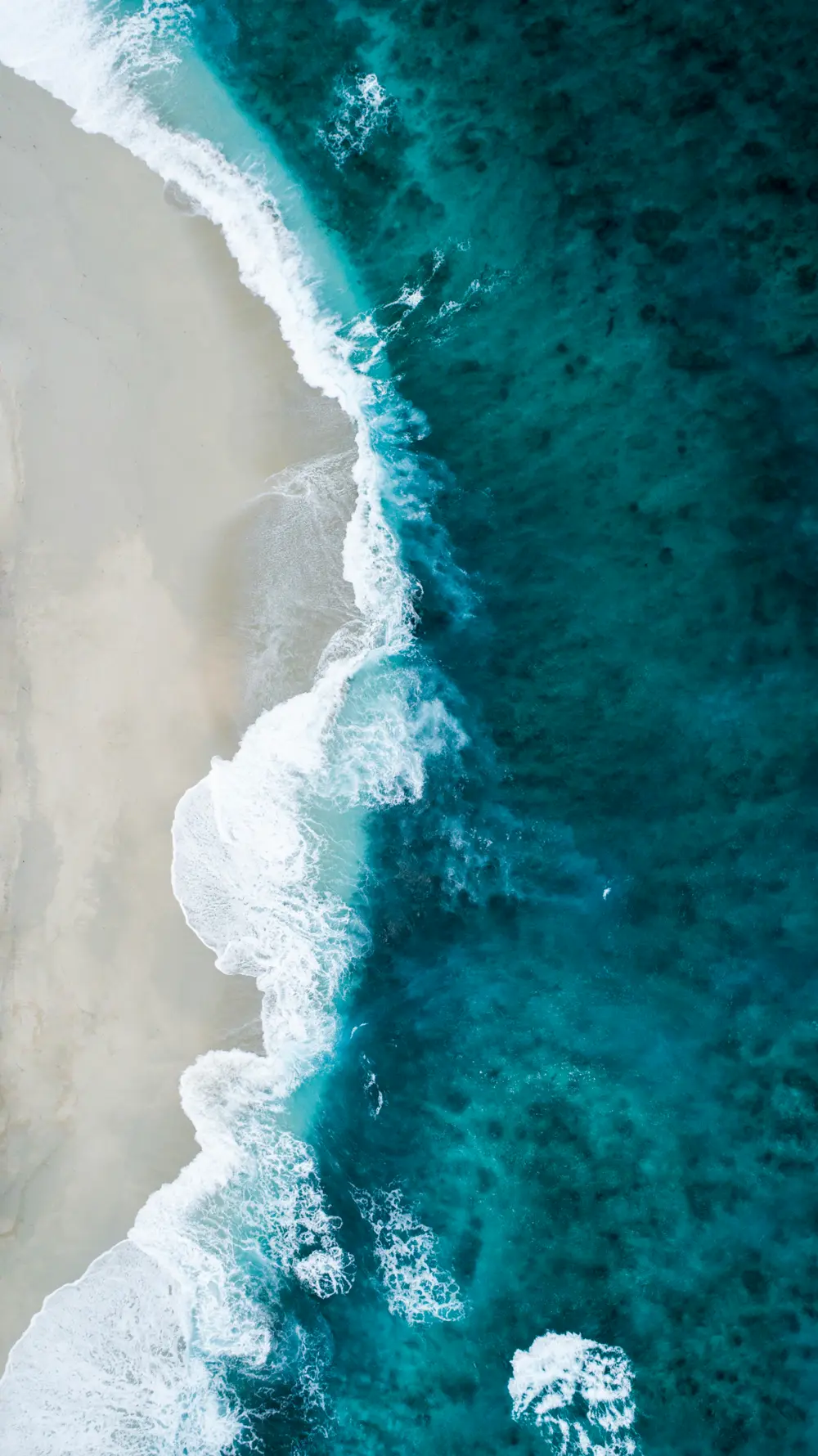
Transform Your Workspace with an Animated Beach Wallpaper for MacBook
In an era where we spend the majority of our professional and creative lives staring at screens, the environment of our digital workspace becomes paramount. A static, cluttered, or uninspiring desktop can contribute to mental fatigue and a sense of digital claustrophobia. However, integrating an animated beach wallpaper for macbook can fundamentally shift your relationship with your device. By introducing the rhythmic, predictable motion of ocean waves and the subtle shift of coastal light, you turn a mere computer into a serene window toward nature.
- Why motion backgrounds matter for productivity
- How to install live wallpapers on macOS
- The best sources for high-quality ocean loops
- Optimizing performance and battery life
Why Animated Beach Wallpapers Enhance Your MacBook Experience
The psychological impact of water is well-documented in marine biology and environmental psychology. This concept, often referred to as the Blue Mind theory, suggests that being near, in, or looking at water induces a mild meditative state. When you apply this to your MacBook, you are essentially bringing a piece of the coast into your office. Choosing a high-quality animated beach wallpaper for macbook allows for a subtle sensory immersion that can lower cortisol levels and improve concentration during deep work sessions.
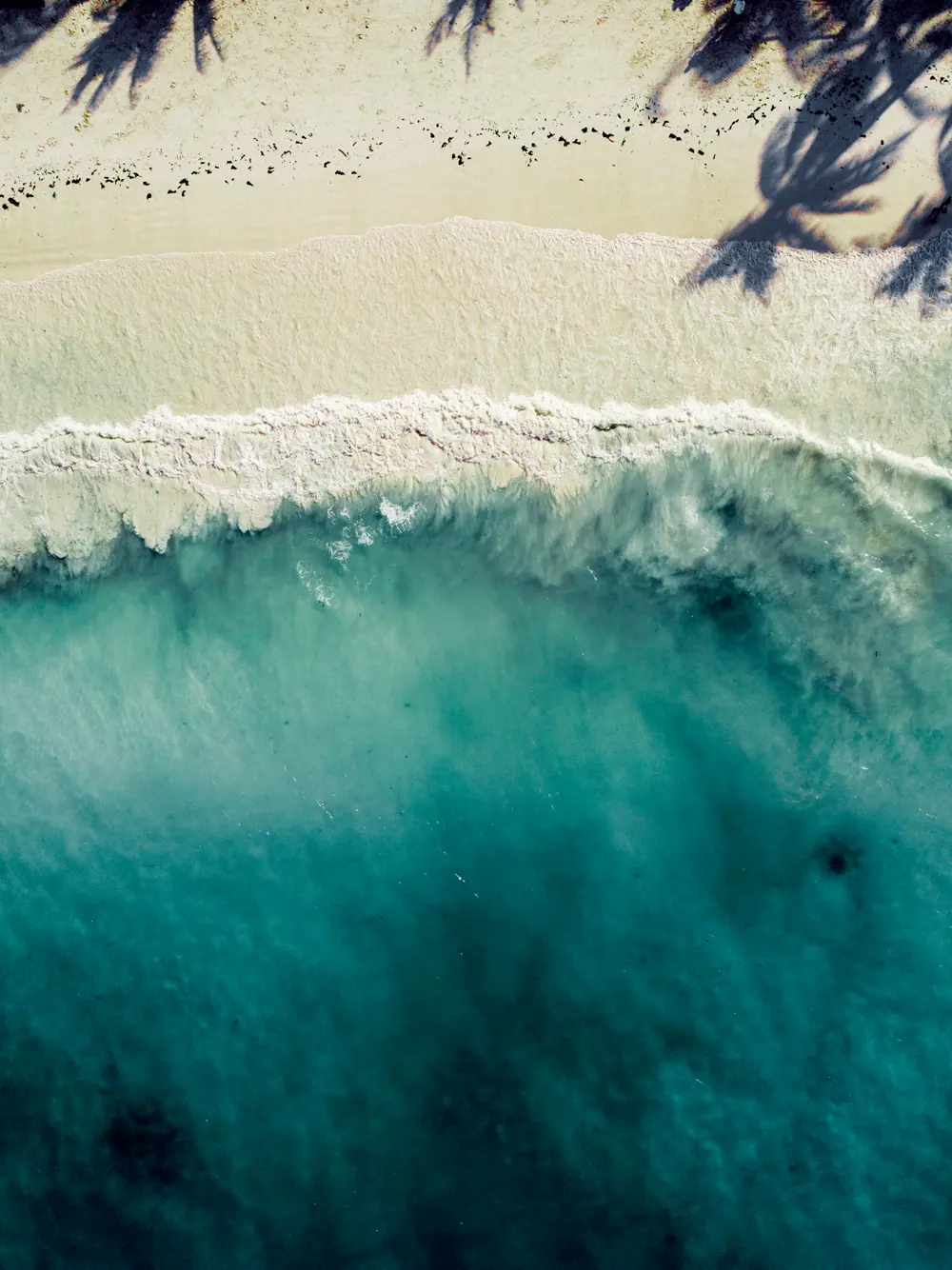
When customizing your MacBook, users often find that motion adds a layer of visual depth that static images lack. Instead of a frozen moment in time, you see the evolution of a wave or the sway of a palm tree, which prevents the brain from experiencing the ‘stagnation’ often felt with traditional desktops. If you are looking to refresh your setup, exploring various scenery options can help you find the perfect atmospheric match for your specific workflow.
The Aesthetic Advantage of Coastal Motion
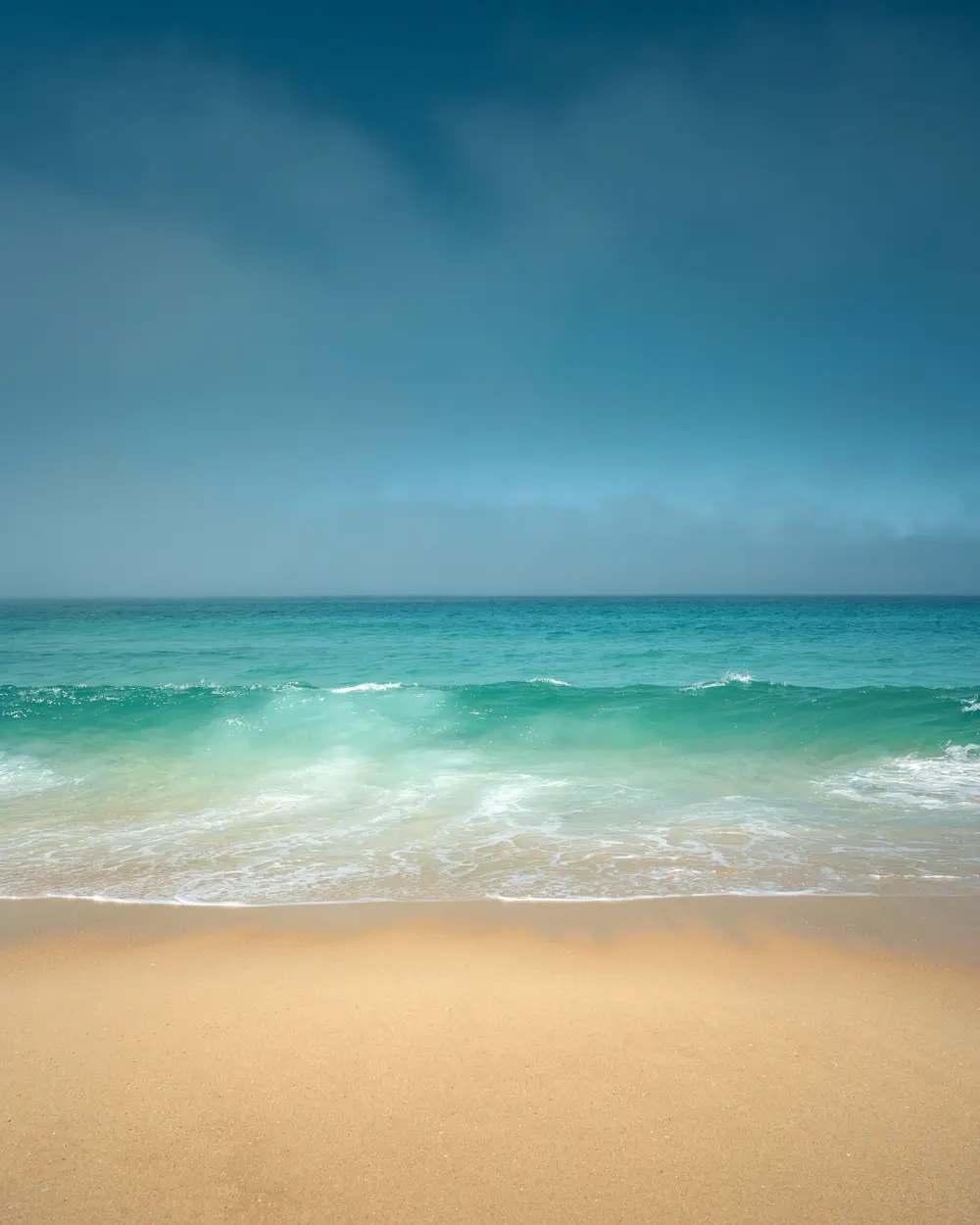
From a design perspective, beach animations offer a unique palette of dynamic colors. The gradient shifts from deep cerulean to pale turquoise, paired with the white foam of breaking waves, provide a sophisticated backdrop that doesn’t compete with your app icons. This creates a visual hierarchy where your work remains the priority, but the background provides a soothing ‘resting place’ for your eyes when you look away from your active windows.
How to Install Live Wallpapers on macOS
Installing a moving background on a Mac is slightly different than on Windows, as macOS handles video and animation through specific system frameworks. Depending on your version of macOS, you have several distinct pathways to achieve a professional-grade animated desktop.
Utilizing Native macOS Sonoma Features
If you are running macOS Sonoma or later, Apple has revolutionized the way we interact with backgrounds. The system now includes high-resolution Aerial wallpapers that transition seamlessly from a stunning slow-motion screen saver to a static desktop wallpaper once you log in. While these are not all beach-themed, the quality of the cinematic motion is unmatched. To use these, simply navigate to System Settings, select ‘Wallpaper,’ and browse the ‘Aerial’ collection. Look for the coastal landscapes to find that calming ocean effect natively.
Using Third-Party Applications for Custom Loops
For users who want a specific animated beach wallpaper for macbook—perhaps a specific tropical island or a moody, stormy coastline—native settings might feel limiting. This is where third-party software becomes essential. Applications such as iWallpaper or Dynamic Wallpaper Engine allow you to import your own video files (like MP4 or MOV) and set them as active backgrounds. These apps provide the flexibility to use any loop you find online, ensuring your desktop is a true reflection of your personal taste.
Finding the Perfect High-Resolution Ocean Loops
Not all animations are created equal. If you use a low-resolution clip, your high-end MacBook Pro will look amateurish. To maintain a premium feel, you must prioritize high bitrates and resolution. For Retina displays, you should always aim for at least 4K resolution. A pixelated ocean wave can be more distracting than a static image.
- Seamless Loops: Ensure the video file has a seamless transition so you don’t notice the ‘jump’ when the video restarts.
- Framerate: Look for at least 30fps or 60fps to ensure the motion of the water looks fluid and natural rather than choppy.
- Color Grading: Choose clips with a consistent color temperature to avoid clashing with your UI themes.
Websites like Pexels, Pixabay, and specialized stock footage sites are excellent for finding copyright-free ocean footage. Always check the licensing to ensure you can use the footage for your personal desktop setup.
Managing System Resources and Battery Life
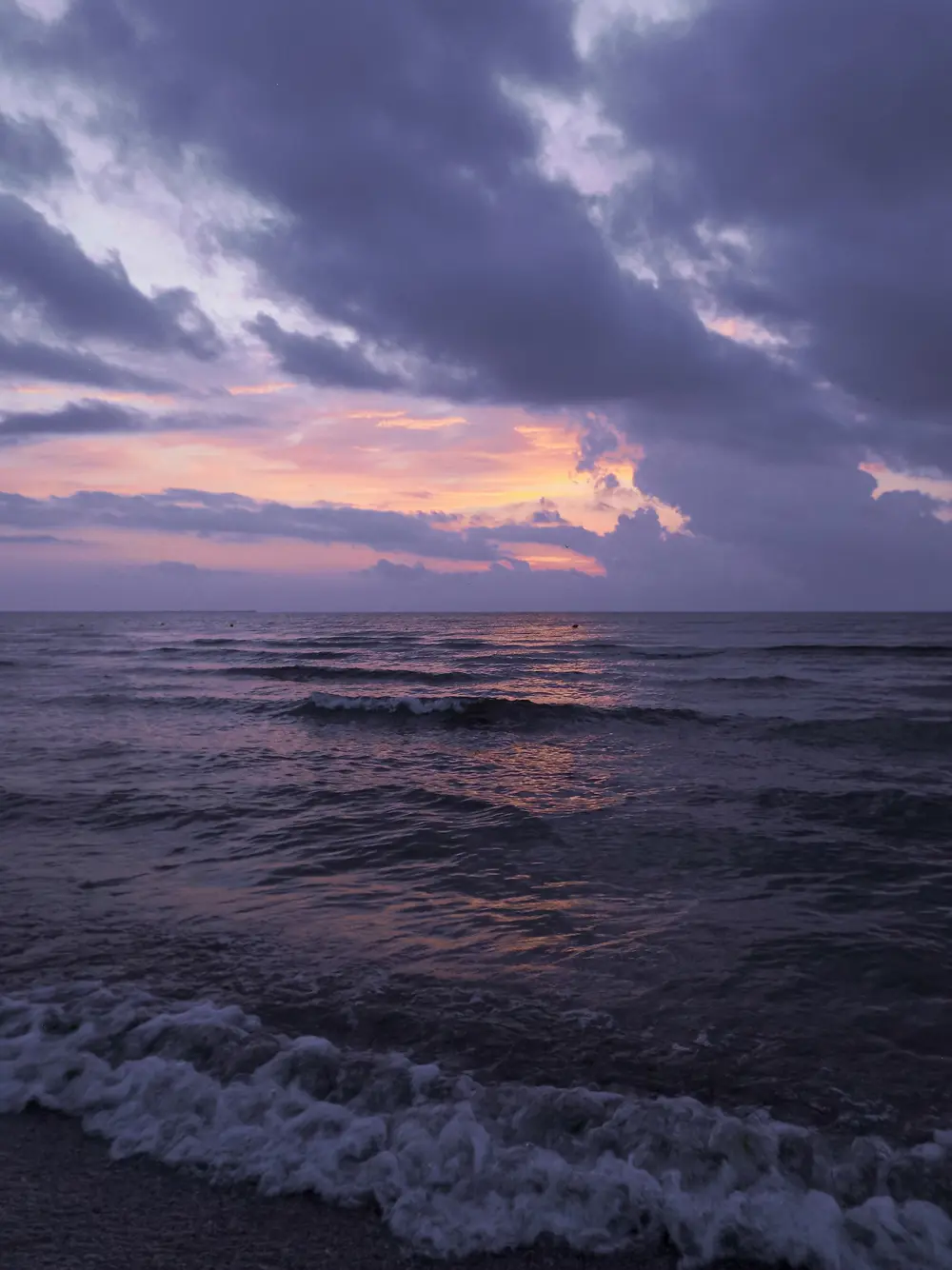
One of the most common concerns when using an animated beach wallpaper for macbook is the impact on hardware performance. Running a continuous video file requires GPU and CPU cycles, which can theoretically decrease battery longevity. However, modern Apple Silicon (M1, M2, and M3 chips) are incredibly efficient at handling video playback, making the impact negligible for most users.
To optimize your experience, follow these professional tips:
- Reduce Brightness: High-brightness screens combined with high-motion wallpapers can drain power faster.
- Use App Settings: Many third-party wallpaper apps have a ‘pause’ feature that stops the animation when you have a full-screen application active. This is the most efficient way to preserve energy cycles.
- File Format Efficiency: Use highly compressed formats like HEVC (H.265). This provides high visual quality with a much smaller computational footprint than older codecs.
Conclusion
Integrating an animated beach wallpaper for macbook is a simple yet profound way to elevate your digital life. Whether you are seeking the psychological benefits of the Blue Mind effect or simply want a more aesthetically pleasing workspace, the ability to bring the ocean to your desk is a powerful tool. By choosing high-resolution, seamless loops and utilizing the right software, you can create a desktop environment that fosters both productivity and peace. Remember to balance your desire for beauty with the technical realities of your device to ensure a smooth, high-performance experience.
Frequently Asked Questions
Do animated wallpapers drain my MacBook battery?
Yes, they use more power than static images because the GPU must constantly render frames. However, on modern M-series MacBooks, this impact is minimal, especially if you use apps that pause the animation during full-screen tasks.
Can I use any video file as a wallpaper on Mac?
Not natively. While macOS Sonoma offers specific Aerial videos, for custom files, you will need a third-party app like iWallpaper or Dynamic Wallpaper Engine to convert a video into a desktop background.
What is the best video format for live wallpapers?
MP4 and MOV are the most compatible. For the best balance of quality and performance, use the H.265 (HEVC) codec, which offers excellent compression for high-resolution footage.
Will a live wallpaper slow down my MacBook Pro?
If you have an Intel-based Mac with limited RAM, you might notice a slight impact. On Apple Silicon (M1/M2/M3), the hardware is specifically optimized for video, so you likely won’t feel any slowdown during standard use.
Where can I find free high-quality beach loops?
Websites like Pexels and Pixabay offer free stock videos that are perfect for wallpapers. Always look for ‘looping’ or ‘seamless’ videos to ensure the best visual experience.
Related posts:


Before you settle on one, glance at Dynamic Vaporwave Wallpaper for Widescreen: Aesthetic Guide too. It pairs nicely with what you just scrolled through.
Save your favourites and share the rest — good wallpapers travel fast.
